09 - Build your authorize URL
On the production and sandbox environments, the "scaOauth" property of a consent creation (with header tppExplicitAuthorizationPreferred = false) or a POST /authorization
endpoint is the following:
  {

      …

      "_links": {

        "scaOAuth": {

          "href": "https://api.psd2.lazardfreresbanque.fr/berlingroup/.well-known/openid-configuration?authorizationId=31f68ab6-1ce6-4131-a324-3f37d2ca4b02"

        },

        …

      }

  }
You have to call this URL and retrieve the “authorization_enpoint” property in the response:
  {

    "issuer": "https://api.psd2.lazardfreresbanque.fr",

    "authorization_endpoint": "https://web-api.psd2.lazardfreresbanque.fr/public/berlingroup/authorize/31f68ab6-1ce6-4131-a324-3f37d2ca4b02",

    "token_endpoint": "https://api.psd2.lazardfreresbanque.fr/berlingroup/v1/token",

    "userinfo_endpoint": "https://api.psd2.lazardfreresbanque.fr/berlingroup/v1/accounts",

    "scopes_supported": [

      "account",

      "payment"

    ],

    "response_types_supported": [

      "code"

    ],

    "grant_types_supported": [

      "client_credentials",

      "authorization_code",

      "refresh_token"

    ],

    "code_challenge_methods_supported": [

      "S256"

    ],

    "subject_types_supported": [

      "public"

    ]

  }
With this property, you will be able to build your authorize URL with the following parameters:
| URI parameter | Description |
|---|---|
| scope |
This parameter corresponds to the consentId of the consent creation or the paymentId of the payment initiation Examples: AIS:1587559935-bae68c2 PIS:1587561419-bp5b5f2 |
| client_id | This parameter corresponds to your NCA id |
| state | Dynamic value that you have to set in order to prevent XSRF attacks |
| redirect_uri |
This parameter corresponds to the URI where the OAuth2 server is redirecting the PSU after the authorization. NB : this redirect_uri has to be the same used for the consent creation or payment initiation |
| code_challenge | This parameter corresponds to PKCE challenge according to cryptographic RFC 7636 which is used to prevent code injection attacks |
| response_type | Type of the response. This value has to be set to “code” |
| code_challenge_method | Optional parameter which corresponds to the code verifier transformation method ("S256" or "plain") |
Following these instructions your authorize URL should look like this and is now valid to process the authorization of the PSU:
https://web-api.psd2.lazardfreresbanque.fr/public/berlingroup/authorize/31f68ab6-1ce6-4131-a324-3f37d2ca4b02?scope=AIS:1587559935-bae68c2&client_id=[your_client_Id]&state=test&redirect_uri=[your_redirect_uri]&code_challenge=E9Melhoa2OwvFrEMTJguCHaoeK1t8URWbuGJSstw-cM&response_type=code&code_challenge_method=S256
This process to build the authorize URL is the same for a payment initiation.
NB : the "redirect_uri" parameter in the URL has to be the same as the "TPP-Redirect-URI" header of the consent creation
08 - Connect to the sandbox or Berlin Group APIs
The communication between the TPP and the Bank (Sandbox or Berlin Group APIs) is always secured by using a TLS-connection Mutual authentication using TLS version 1.2 which is initiated by the TPP.
The TLS-connection has to be established always including client (i.e. TPP) authentication.
For this authentication the TPP has to use a qualified certificate for website authentication (QWAC) which has to be issued by a qualified trust service provider according to the eIDAS regulation.
The content of the certificate has to be compliant with the requirements of the EBA-RTS and follow the ETSI TS 119 495 V1.2.1 (2018-11) technical specification.
During the first connection setup, the TPP will be automatically onboarded and registered (enrolled) in the bank database. However, for security purpose, the bank requires the client certificate to be presented within each request.
Following the EBA clarification 07/06/2019, it's now possible to test the Sandbox using a test certificate. The only restriction is that the certificate used to establish the SSL MA must follow the QWAC format for PSD2, according to ETSI TS 119 495 V1.2.1 (2018-11)
For the Berlin Group APIs, the QWAC certificate has to be issued from a production CA.
Make sure that your QWAC configuration is correct by testing the following endpoint on the sandbox (no headers are necessary)
GET /berlingroup/actuator/info
07 - Monitor performance & availability of our APIs
As a TPP you may want to see various information and statistics about our APIs. If this is the case, you can get this information
by going to the following link:
https://www.lazardfreresbanque.fr/Statistiques-DSP2_65.html?Refresh=1
You will be able to see daily statistics on a quarterly basis on the availability and performance of our APIs.
06 - Contact our support team
As a TPP if you face any problems using either our Sandbox or Production APIs you can contact us by using the dedicated support email : lfb.dsp2.support@lazard.fr
Please try to give us the full context of your request :
- TPP Name,
- TPP Registration Number,
- Date and Time of the issue,
- Service : AIS, PIS, FCS,
- Endpoint,
- Error message, error code, screenshot,
- Information about concerned version by using one of the following URLs.
A valid QWAC Certificate for PSD2 is required in order to access these URLs.
The certificate is mandatory, otherwise you will get an error :
Our support team will answer you as soon as possible.
05 - Use our Sandbox Dataset
The sandbox is a mocked environment which allows you to test your application. This environment simulates API responses of the requests described in API page of this developer portal.
To get a response the request has to match certain headers, path and query parameters with specific values described below. Any deviation in these parameters may return in an error code.
The endpoints used in the sandbox environment are identical as those used in production.
You will need to have a valid QWAC Certificate for PSD2 in order to perform the requests on the sandbox. This certificate is mandatory; otherwise you will get an error. The sandbox is freely accessible and you don't need to fulfil an enrolment process to use it
All the specified values to use for the requests will be described in the next paragraphs.
For more details, please refer to the HowTo Manage Consents for Account Information Service
Initiate a consent (Single SCA)
POST /berlingroup/v1/consents
You can create a consent which will create implicitly an authorisation on this consent by setting the header “TPP-Explicit-Authorisation-Preferred” of this request to “false”. In this case, the creation of another authorisation on the consent will be forbidden and you will just have to authorise the consent using the link in the response.
Use the value “VALID_CONSENT_ID” in the request path to test this API.
Here is an example of a body that you can use to test the request:
{
  "access": {
    "allPsd2": "allAccounts"
  },
  "recurringIndicator": true,
  "frequencyPerDay": 4,
  "combinedServiceIndicator": false,
  "validUntil": "2030-12-12"
}
If the header “TPP-Explicit-Authorisation-Preferred” is set to true you will have to create manually an authorisation on the consent with the following request in order get the authorize link:
POST
/berlingroup/v1/consents/{consentId}/authorisations
Use the value “CONSENT_ID_NO_AUTHORIZATION” in the request path to test this API.
Authorize the AIS consent
The authorisation workflow implements the BerlinGroup redirect scenario using OAuth2 SCA Protocol.
In order to test this redirect approach, the sandbox provides a graphical user interface in order to simulate all the possible SCA scenarios (Login fails, timeout, SCA rejected…) that are listed below:
| SCA scenario | Description |
|---|---|
| LOGIN_CANCEL | If the login phase was cancelled by the PSU |
| LOGIN_TIMEOUT | If the login phase encountered a timeout |
| LOGIN_OTHER_ERROR | If another error occurred during the login phase |
| LOGIN_REQUEST_REJECTED | If the login phase was rejected |
| BAD_PASSWORD_LOGIN | If an error occurred during the login phase with a bad password |
| UNKNOWN_LOGIN | If an error occurred during the login phase with an unknown login |
| SCA_OK | To get a successful authorisation |
| SCA_EXEMPTED | If the SCA phase was exempted |
| SCA_CANCEL | If the SCA phase was cancelled by the PSU |
| SCA_TIMEOUT | If the SCA phase encountered a timeout |
| SCA_OTHER_ERROR | If another error occurred during the SCA phase |
| SCA_NOK | If the SCA phase did not succeed |
| SCA_REQUEST_REJECTED | If the SCA phase was rejected |
| SCA_INTERNAL_ERROR | If an internal error occurred |
To access this graphical user interface you have to build your authorisation URI using the scaOAuth URL received in the response of the consent initialisation with the following parameters:
| URI parameter | Sandbox value | Comments |
|---|---|---|
| scope | AIS:VALID_CONSENT_ID | Must be set to this value on the Sandbox. On the production API, Must be set to this the consentId returned by the consent initialisation |
| client_id | VALID_CLIENT_ID | Must be set to this value on the Sandbox. On Production API, you must provide your NCA id |
| state | Any value | On Production API, this is a dynamical value that you have to set in order to prevent XSRF attacks |
| redirect_uri | Any URI value | On Production API, this corresponds to the URI where the OAuth2 server is redirecting the PSU after the authorization |
| code_challenge | Any value | On Production API, this corresponds to PKCE challenge according to cryptographic RFC 7636 (https://tools.ietf.org/html/rfc7636) and is used to prevent code injection attacks |
| response_type | code | Must be set to this value on the Sandbox and on Production API |
| code_challenge_method | S256 | On Production API this parameter is optionnal and corresponds to the code verifier transformation method ("S256" or "plain") |
Following these instructions, you should build the following URI for the sandbox:
This URI will redirect on a mocked page on which you can test the different redirect scenarios of the authorisation flow. All user flow will display an information page before redirecting the PSU to the redirect_uri (HTTP 302 response).
Get an AIS access Token
POST /berlingroup/v1/token
In order to access the PSD2 requests you need to get an access token for your application. To get this token you have to exchange an authorization_code with a valid token. This authorization_code is found in the 302 response of a valid authorisation.
First of all, you have to use for this request a body encoded as x-www-form-urlencoded.
Here are the specific keys to use for the body of this request: (cf. API /token in API section)
"authorization_code" as value for the "grant_type" parameter
"VALID_CLIENT_ID" as value for the "client_id" parameter
"Any value" as value for the "code_verifier" parameter (On production environment, you have to use the code_verifier of code_challenge provided in the authorize URL)
the following values for the "code" parameter:
| Code | Description |
|---|---|
| AIS_VALID_CODE | Valid code to get an access token for the consent VALID_CONSENT_ID |
| AIS_VALID_CODE_TRANSACTION_90D_KO | Valid code to get an access token for the consent CONSENT_ID_TRANSACTION_90D_KO. This consent is to used in order to get the error of the access right to transactions older than 90 days |
The response to this API comes in the form of a JSON object with the following structure:
{
  "access_token": "4db39597dc674268a7fa253d255c47cec7618d14ebdd433a984a7680ce0b77ad0bd76a3a55e8455b980bf41c833a03ce",
  "token_type": "Bearer",
  "expires_in": 3600,
  "refresh_token": "e3da5c9922a34d6e8fa0fa4b780acc2c1ad3a05d485f43f08580250d26a1782b0544973a64204185a9257ca07143c0bb",
  "scope": "AIS:VALID_CONSENT_ID"
}
This will be the access that has a limited time validity that you have to use for the future request.
According to Oauth2 specification, you can exchange this access token for a refresh token still using the /Token API but with a “refresh_token” as grant type in the body of the request:
| Parameter | Value |
|---|---|
| grant_type | refresh_token |
| refresh_token | The refresh token that you just got with the /token API |
| client_id | VALID_CLIENT_ID |
The refresh token will have a validity of 180 days, the duration of an AIS consent.
Access the consent
GET/berlingroup/v1/consents/{consentId}
GET/berlingroup/v1/consents/{consentId}/status
Here are the different consent ids that you can use to test these APIs.
| Consent Id | Description |
|---|---|
| VALID_CONSENT_ID | To retrieve a consent with the status “Valid” and a preselected scope |
| CONSENT_ID_REVOKED_BY_PSU | To retrieve a consent with the status “revokedByPsu” |
| CONSENT_ID_EXPIRED | To retrieve a consent with the status “expired” |
| CONSENT_ID_REJECTED | To retrieve a consent with the status “rejected” |
| CONSENT_ID_TERMINATED_BY_TPP | To retrieve a consent with the status “terminatedByTpp” |
| CONSENT_ID_RECEIVED | To retrieve a consent with the status “received” |
| CONSENT_ID_ALL_PSD2 | To retrieve a consent with the status “Valid” and a “allPsd2” scope |
| CONSENT_ID_AVAILABLE_ACCOUNTS | To retrieve a consent with the status “Valid” and a “availableAccounts” scope |
| CONSENT_ID_AVAILABLE_ACCOUNTS_WITH_BALANCES | To retrieve a consent with the status “Valid” and a “availableAccountsWithBalances” scope |
Delete a consent
DELETE /berlingroup/v1/consents/{consentId}
Here are the different consent ids that you can use to test this API.
| Consent Id |
|---|
| VALID_CONSENT_ID |
| CONSENT_ID_REVOKED_BY_PSU |
| CONSENT_ID_EXPIRED |
| CONSENT_ID_REJECTED |
| CONSENT_ID_TERMINATED_BY_TPP |
| CONSENT_ID_RECEIVED |
Get the consent authorisations and
status
GET
/berlingroup/v1/consents/{consentId}/authorisations
This request retrieves the list of the authorisations of the consent.
You can use the value “VALID_CONSENT_ID” in the request to test this API. If you use another value, the consent will be considered as not found.
GET
/berlingroup/v1/consents/{consentId}/authorisations/{consentAuthorisationId}
You can use the value “VALID_CONSENT_ID” and a value for the “consentAuthorisationId” in the request path to test this API. If you use another value, the consent will be considered as not found.
| consentAuthorisationId | Description |
|---|---|
| 11111111-1111-1111-1111-111111111111 | To retrieve an authorisation with the status “finalised” |
| 22222222-2222-2222-2222-222222222222 | To retrieve an authorisation with the status “received” |
| 33333333-3333-3333-3333-333333333333 | To retrieve an authorisation with the status “psuIdentified” |
| 44444444-4444-4444-4444-444444444444 | To retrieve an authorisation with the status “psuAuthenticated” |
| 55555555-5555-5555-5555-555555555555 | To retrieve an authorisation with the status “scaMethodSelected” |
| 66666666-6666-6666-6666-666666666666 | To retrieve a authorisation with the status “started” |
| 77777777-7777-7777-7777-777777777777 | To retrieve an authorisation with the status “failed” |
| 88888888-8888-8888-8888-888888888888 | To retrieve an authorisation with the status “exempted” |
For more details, please refer to the HowTo Access Account Information Services
Retrieve all accounts
GET /berlingroup/v1/accounts
Here are the different consent ids that you can use to in the “Consent-Id” header to test this API.
You also have to use the access token for the corresponding status.
| Consent-Id (header) | Description |
|---|---|
| VALID_CONSENT_ID | Valid consent |
You have a limited access of 4 times per day to this API. You have to include the IP address from which the PSU accesses the TPP service in the PSU-IP-Address header in order not to apply the restriction.
Retrieve the detail of an account
GET /berlingroup/v1/accounts/{accountId}
Here are the different consent ids that you can use to in the “Consent-Id” header to test this API.
You also have to use the access token for the corresponding status.
| Consent-Id (header) | Account Id (request parameter) | Description |
|---|---|---|
| VALID_CONSENT_ID | ACCOUNT_ID | Account of a valid consent |
| VALID_CONSENT_ID | Any unknown account | No permission on this account |
You have a limited access of 4 times per day to this API. You have to include the IP address from which the PSU accesses the TPP service in the PSU-IP-Address header in order not to apply the restriction.
Retrieve the balances of an account
GET
/berlingroup/v1/accounts/{accountId}/balances
Here are the different consent ids that you can use to in the “Consent-Id” header to test this API.
You also have to use the access token for the corresponding status.
| Consent-Id (header) | Account Id (request parameter) | Description |
|---|---|---|
| VALID_CONSENT_ID | ACCOUNT_ID | Account of a valid consent |
| VALID_CONSENT_ID | Any unknown account | No permission on this account |
You have a limited access of 4 times per day to this API. You have to include the IP address from which the PSU accesses the TPP service in the PSU-IP-Address header in order not to apply the restriction.
Retrieve the transactions of an account
GET
/berlingroup/v1/accounts/{accountId}/transactions?dateFrom=2019-02-01&bookingStatus=booked
Here are the different parameters that you can use to test this API.
You also have to use the access token for the corresponding consent.
| Consent-Id (header) | Account Id (request parameter) | Description |
|---|---|---|
| VALID_CONSENT_ID | ACCOUNT_ID | Account of a valid consent |
| VALID_CONSENT_ID | Any unknown account | No permission on this account |
| CONSENT_ID_TRANSACTION_90D_KO | ACCOUNT_ID | Account where the access right to transactions older than 90 days is expired |
You have a limited access of 4 times per day to this API. You have to include the IP address from which the PSU accesses the TPP service in the PSU-IP-Address header in order not to apply the restriction.
04 - Specific BerlinGroup Implementation
- API base URL: https://api.psd2.lazardfreresbanque.fr
- Authorisation base URL: https://web-api.psd2.lazardfreresbanque.fr/public
- Sandbox base URL : https://sandbox.psd2.lazardfreresbanque.fr
- Sandbox authorisation base URL : https://web-sandbox.psd2.lazardfreresbanque.fr/public
- BerlinGroup Conformity : Implementation Guidelines
version 1.3
More details on how the APIs work, including sample queries, etc, are available in the Berlin Group's specifications. The above link redirects to the Implementation Guidelines, as well as the Berlin Group specifications in Open API 3.0 format.
QWAC verification
A valid QWAC Certificate for PSD2 is required to access the Sandbox and Berlin Group API. The following conditions are verified:
- The certificate must be valid (the connection date is strictly between the creation date and the expiration date of the certificate)
- The certificate must be issued by a QWAC Certificate Authority. The official list of QTSP is available on the eIDAS Trusted List
- The certificate should not be revoked
A TPP can provide and use any number of valid certificates as long as the CA properties and organizationIdentifier stay the same. The old certificates are not revoked when a new valid certificate is presented by the TPP and can be kept in use until their expiration date is passed.
| SCA Approach | Supported | |
|---|---|---|
| Redirect OAuth 2.0 workflow | ✔ | |
| App redirection using App-to-App redirection based on deep linking workflow | ✖ | |
| Decoupled workflow | ✖ | |
| Embedded workflow | ✖ | |
| Services | Supported | |
|---|---|---|
| Support of multiple consents | ✖ | |
| Support of Signing Baskets | ✖ | |
| Support of Card Accounts Endpoints | ✖ | |
| Support display of Account ownerName and ownerNames | ✖ | |
| Support display of Account psuName | ✖ | |
| Owner name always delivered without taking into account the consent scope | ✖ | |
| Support of Trusted Beneficiaries endpoint | ✖ | |
| Support of Multilevel SCA Approach | ✖ | |
| Maximum Frequency Per Day Value Supported on Consent Request | 4 | |
| SCA Validity for a current consent | 180 days | |
| SCA Validity for a one-off consent | 20 min | |
| Consent establishment Timeout | 3 days | |
| Support of parameter withBalance on APIs | ✖ | |
| Supported Account Reference Identifiers | IBAN | ✔ |
| MaskedPan | ✖ | |
| BBAN | ✖ | |
| Consent scope | Dedicated consent (List of accounts) | ✔ |
| Dedicated consent - Support of ownerName in additionalInformation property | ✖ | |
| Dedicated consent - Support of trustedBeneficiaries in additionalInformation property | ✖ | |
| Global consent - availableAccounts = allAccounts | ✔ | |
| Global consent - availableAccountsWithBalance= allAccounts | ✔ | |
| Global consent - allPsd2= allAccounts | ✔ | |
| Global consent - availableAccounts = allAccountsWithOwnerName | ✖ | |
| Global consent - availableAccountsWithBalance= allAccountsWithOwnerName | ✖ | |
| Global consent - allPsd2= allAccountsWithOwnerName | ✖ | |
| Supported Access for MultiCurrency Accounts | ✖ | |
| Multicurrency level | Aggregation level | ✖ |
| Sub-account level | ✖ | |
| Aggregation & sub-account level | ✖ | |
| Balance Type | closingBooked | ✔ |
| expected | ✖ | |
| openingBooked | ✖ | |
| interimAvailable | ✖ | |
| interimBooked | ✖ | |
| forwardAvailable | ✖ | |
| Supported Transactions Query Parameters | bookingStatus = booked | ✔ |
| bookingStatus = pending | ✖ | |
| bookingStatus = both | ✖ | |
| bookingStatus = all to request all types of transactions (pending, booked and information) at once | ✖ | |
| dateFrom | ✔ | |
| dateTo | ✔ | |
| entryReferenceFrom | ✖ | |
| deltaList | ✖ | |
| Support of Standing orders endpoint (bookingStatus=information) | ✖ | |
| Supported optional transaction information (Standing Orders) | debtorName | ✖ |
| instructionIdentification | ✖ | |
| remittanceInformationUnstructuredArray | ✖ | |
| remittanceInformationStructuredArray | ✖ | |
| creditorAgent | ✖ | |
| debtorAgent | ✖ | |
| balanceAfterTransaction | ✖ | |
03 - Perform a Strong Customer Authentication
Description
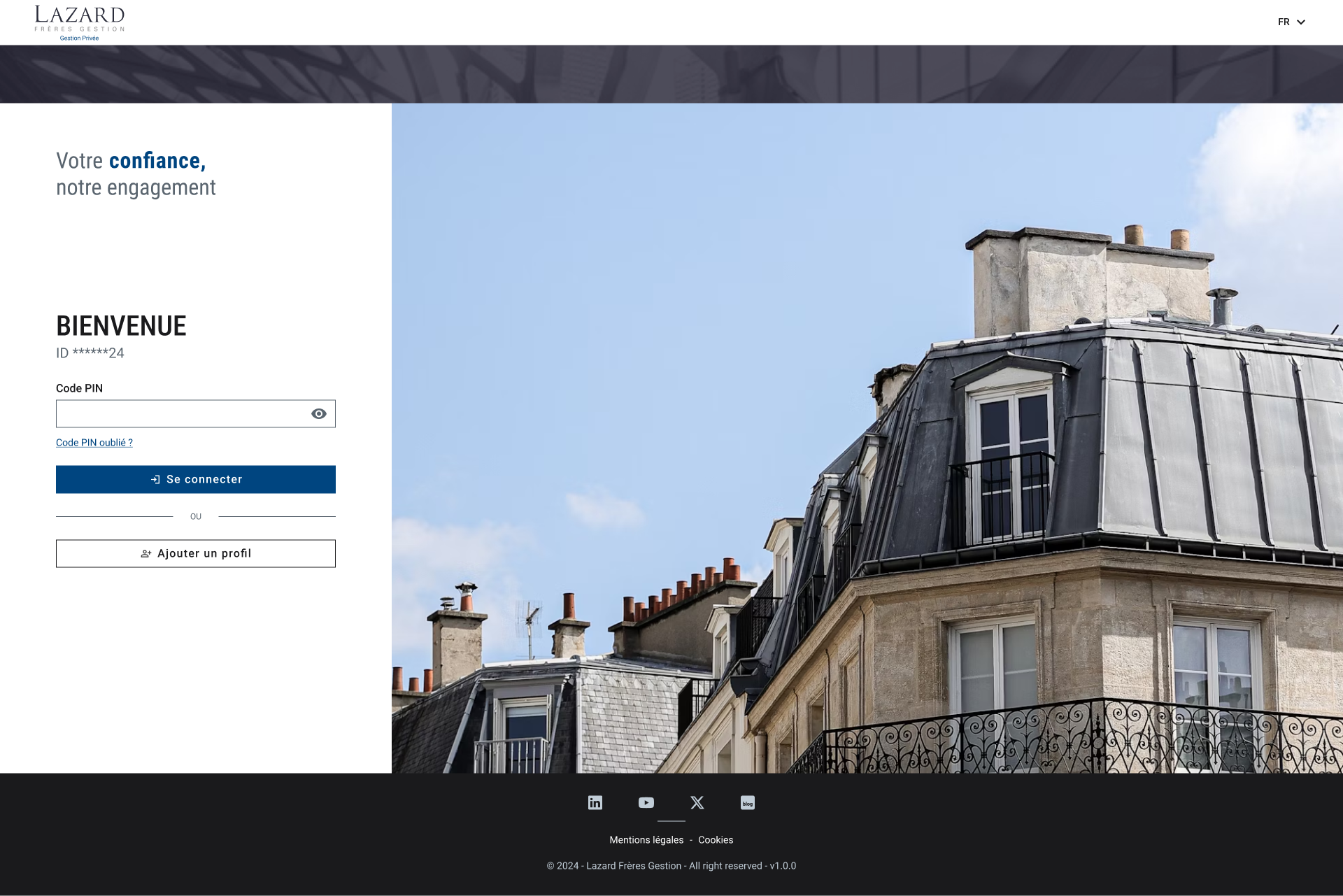
To carry out its strong authentication on the ASPSP side, the PSU will be redirected from the TPP APP through several pages within the workflow described below.
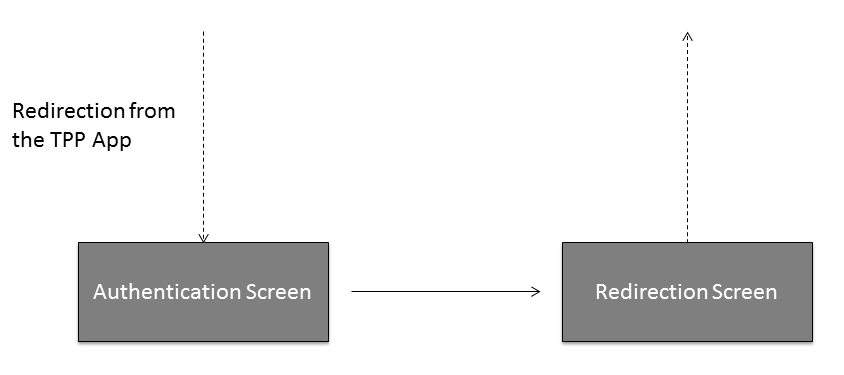
Authentication Screen
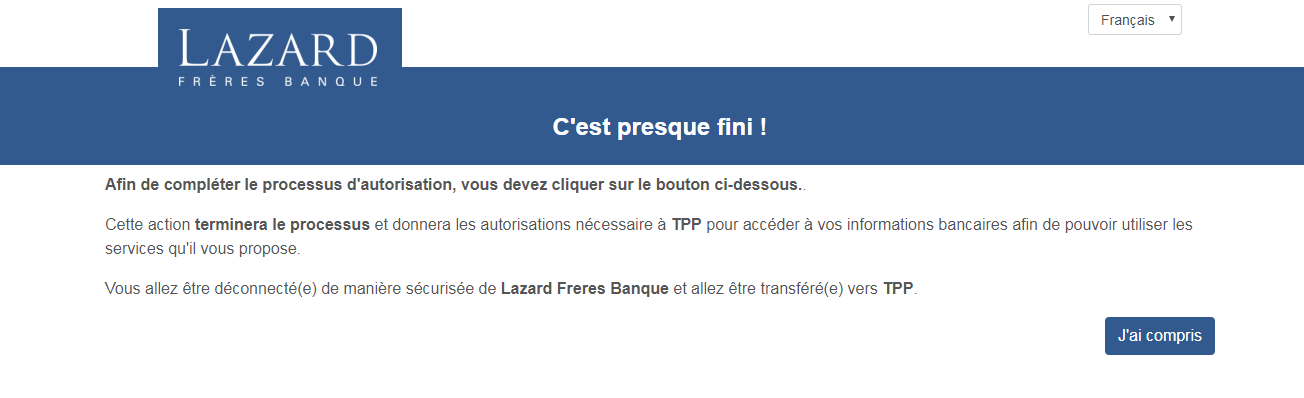
Redirection Screen
Before being redirected to the TPP App, the PSU will access a redirection screen with some context related to the given authorisation.
02 - Access Account Information Services
To access all AIS API, a valid consent established between the TPP, the PSU and the ASPSP is required. In addition, when TPP are using the REDIRECT workflow, they must also provide the access token related to the given consent. The APIs accessible with this consent are listed below. All specifications of these APIs can be found on the API page of this developer portal.
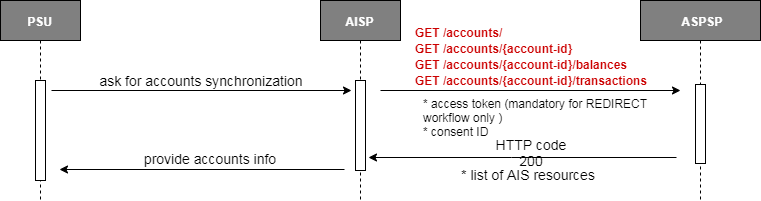
Get list of accounts
GET /berlingroup/v1/accounts
Returns all the accounts (at least payment accounts) that the ASPSP managed for the PSU.
Get details about an account
GET
/berlingroup/v1/accounts/{account-id}
Retrieve all the characteristics of a specific account Characteristics include - Balances (current, available) - Label - Account number - Type of the account.
Get account balances for an account
GET
/berlingroup/v1/accounts/{account-id}/balances
Returns the balances linked to the account specified.
Get transactions for an account
GET
/berlingroup/v1/accounts/{account-id}/transactions
Returns the transactions linked to the account specified.
Specific behaviour for old transactions:
Retrieving transactions older than 90 days is authorised only if the consent is valid during 20 minutes after the SCA was performed.
In the case of a one-off consent, all accounts access are authorised within these 20 minutes.
In the case of a current consent, the access to the transactions prior to 90 days is restricted to the first request for the associated account after the SCA was performed.
Pagination mechanism:
If not all transactions can be returned in a single call, a pagination mechanism is included to manage the historical depth of transactions to return through a 'page' query parameter. Response body include navigation links for paginated account reports which allow redirection to first, next, previous or last page. By default the first page is indexed as 0.
Calculation rule for the 4 calls per day at the initiative of the TPP
TPP can access each AIS resources at a maximum of rolling 4 times period per day. For example:
- GET ../accounts -> 1st call on accounts
- GET ../accounts/accountAAA/balances -> 1st call on Account AAA balances
- GET ../accounts -> 2nd call on accounts
- GET ../accounts/accountBBB/transactions -> 1st call on Account BBB transactions
- GET ../accounts/accountAAA/balances -> 2nd call on Account AAA balances
Pagination mechanism
The counter is not incremented when calling the same endpoint with a different page number within 15 minutes. However, in case of a second call further in the day on the endpoint with the same query parameters (page excluded), the incrementation is applied. For example:
- Within 15 minutes of the same request: counter is not incremented
- GET ../accounts/accountAAA/transactions/ ?page 0 -> counted as same request
- GET ../accounts/accountAAA/transactions/ ?page 1 -> counted as same request
- GET ../accounts/accountAAA/transactions/ ?page 0 -> counted as same request
- ... more than 15 minutes later: counter is incremented
- GET ../accounts/accountAAA/transactions/ ?page 0 (More than 15 minutes after the last call) -> counted as new request
For specific BerlinGroup Implementation on the Account Information Service, please refer to the specific implementation How To.
01 - Manage Consents for Account Information Service
To access all AIS APIs, it is necessary to establish a consent between the TPP, the PSU and the ASPSP.
In this approach, the AISP has to proceed with an OAuth2 authorization in order to retrieve a time-limited access token.
This access token is mandatory to access all the AIS PSD2 APIs. It is associated to the consent established and validate thanks to a redirection of the PSU towards the ASPSP Authentication platform.
See How to Perform a Strong Customer Authentication for details.
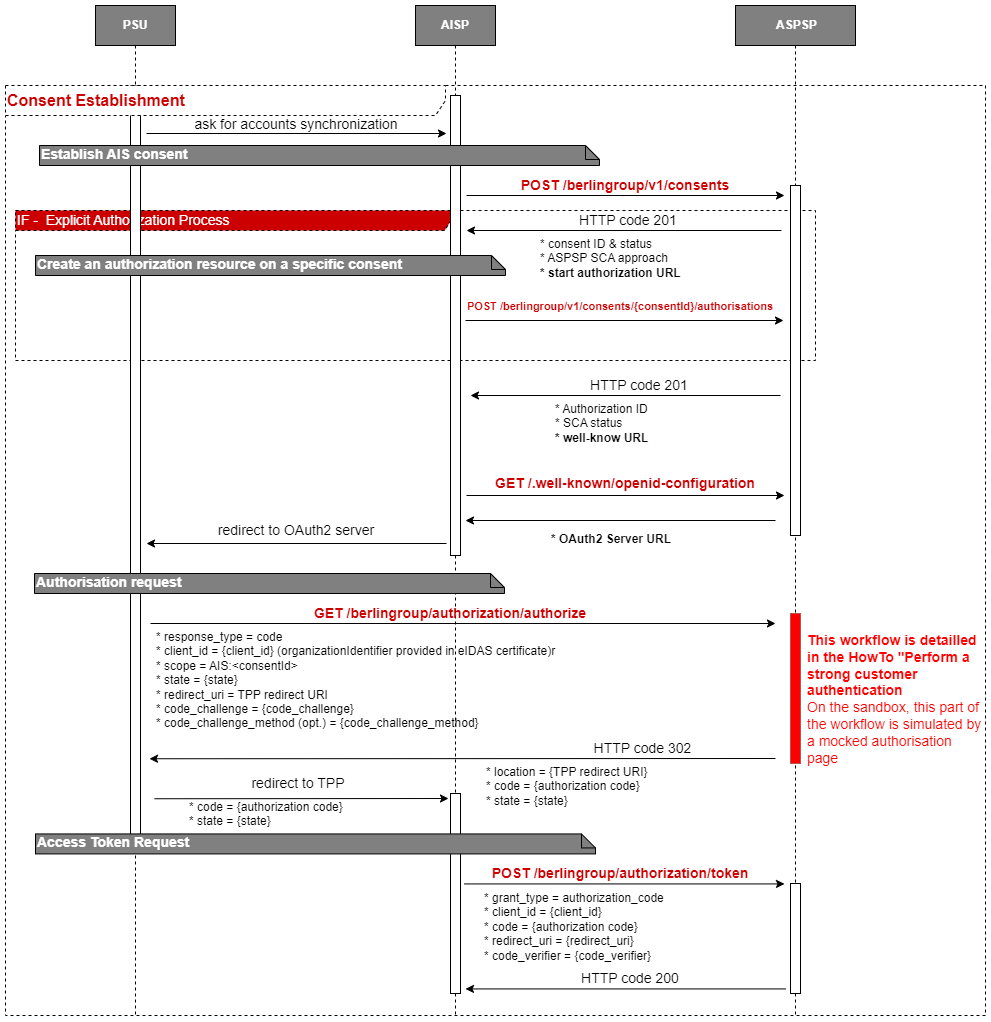
Establish AIS Consent
POST /berlingroup/v1/consents
Creates a consent resource at the ASPSP regarding access to accounts specified in this request. Specificities for this API are listed in the dedicated HowTo.
Create an authorisation resource on a
specific consent
POST
/berlingroup/v1/consents/{consentId}/authorisations
Creates an authorisation sub-resource of the consent resource and start the authorisation process.
The usage of this access method is only necessary if the TPP has asked to start the authorisation process separately from the consent establishment (using the “TPP-Explicit-Authorisation-Preferred” Header)
Authorisation request
GET /berlingroup/authorization/authorize/{authorisation-id}
Requests an authorisation from a PSU following the OAuth2 protocol. Details of the authentication workflow and user
interfaces are described in the dedicated HowTo section.
Our specificities regarding the OAuth2 protocol are listed below.
response_type : code
code_challenge_method : S256
After successful authorisation, the user will be redirected to the redirect URI provided in the request with the following parameters :
https://your_redirect_uri?code=authorization_code&state=test
Access Token Request
POST /berlingroup/v1/token
Requests an access token using the authorization code retrieved from the PSU authorization. This Access Token can be refreshed. The duration of access token is 1 hour, and the duration of refresh token is 180 days.
Retrieve the Consent
GET /berlingroup/v1/consents/{consentId}
The TPP can retrieve the consent resource using the API above.
Retrieve the Consent’s status
GET
/berlingroup/v1/consents/{consentId}/status
The TPP can retrieve the consent's status using the API above.
Get the authorisations of a specific
consent resource
GET
/berlingroup/v1/consents/{consentId}/authorisations
The TPP can retrieve the list of all the autorisations linked to the consent resource using the API above.
Get an authorisation from a specific
consent resource
GET
/berlingroup/v1/consents/{consentId}/authorisations/{authorisationId}
The TPP can retrieve the status of an autorisation linked to the consent resource using the API above.
Delete a Consent resource
DELETE
/berlingroup/v1/consents/{consentId}
The TPP can use this API to terminate a consent.
Submitting a POST /consents request with the property recurringIndicator=false and frequencyPerDay=1 allows you to create a one-off consent.
In this particular case, all AIS accounts access are authorised for a period of 20 minutes
For specific BerlinGroup Implementation on the Account Information Service, please refer to the specific implementation How To.